For your computer
The Bible, in a window of its own
Install Opened on your computer and it opens like any other app: from your Dock or taskbar, straight to the passage you were reading, even offline.
This browser can’t install apps
To download Opened, open this page in Chrome or Edge. Everything still works here, in the browser.
- Free
- No ads
- Installs in seconds
What the desktop app gives you
Everything Opened does in the browser, with the calm of an app of its own.
Its own window and icon
No tabs or address bar. Opened sits in your Dock or taskbar, a click away.
Opens on its launch screen
The open book and its light, then straight to the passage you were reading.
Works offline
The Bibles you’ve saved open without a connection: on a plane, at a retreat, anywhere.
Notes beside the Bible
Write sermon notes and reflections with the passage open next to them.
Keyboard shortcuts
Ctrl+K to search, Ctrl+/ for every shortcut, and the arrow keys to turn the page.
Updates itself
Every improvement arrives on its own. There’s nothing to download again.
No ads, ever
Nothing between you and the text, and nothing about you sold.
See it in action
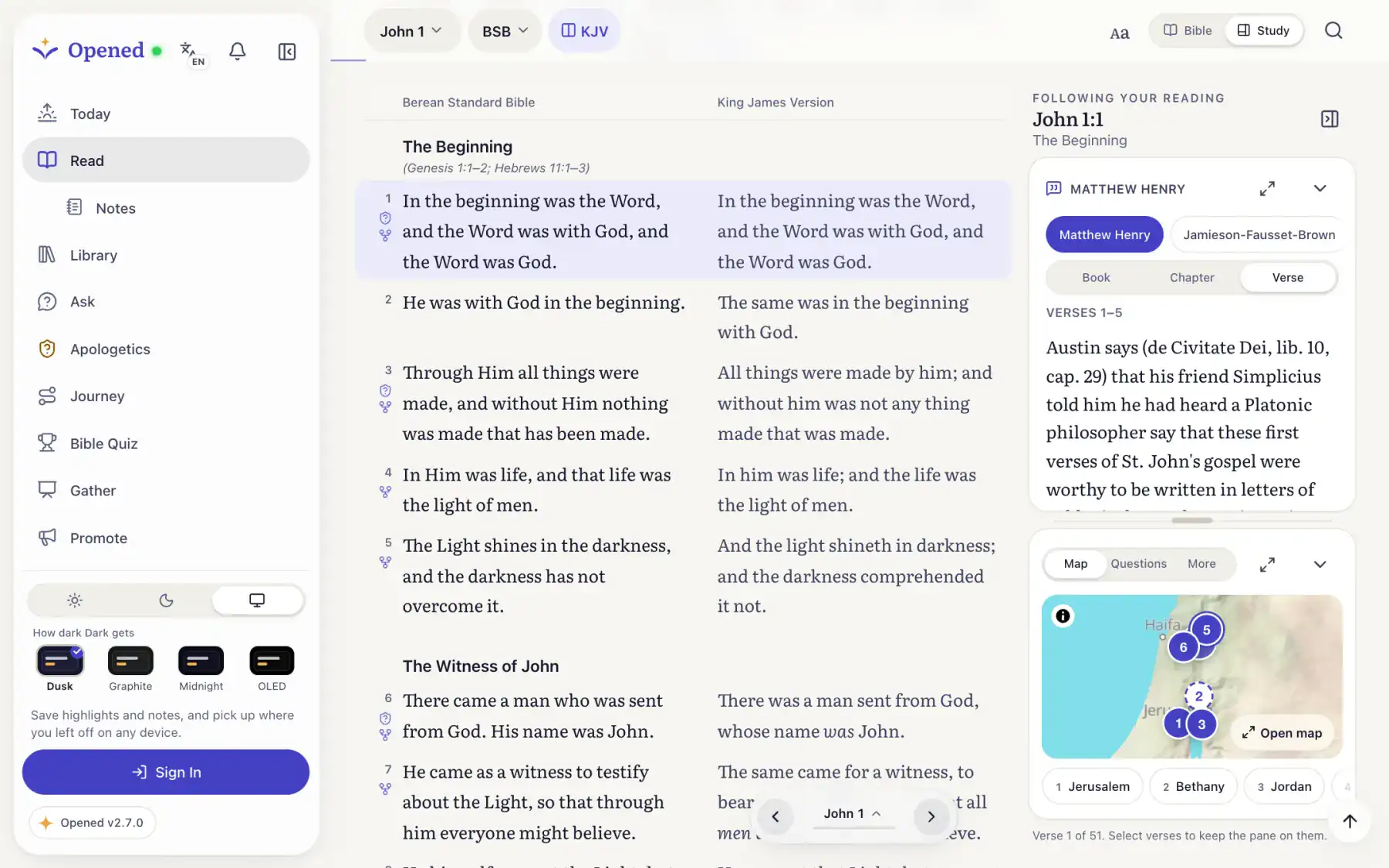
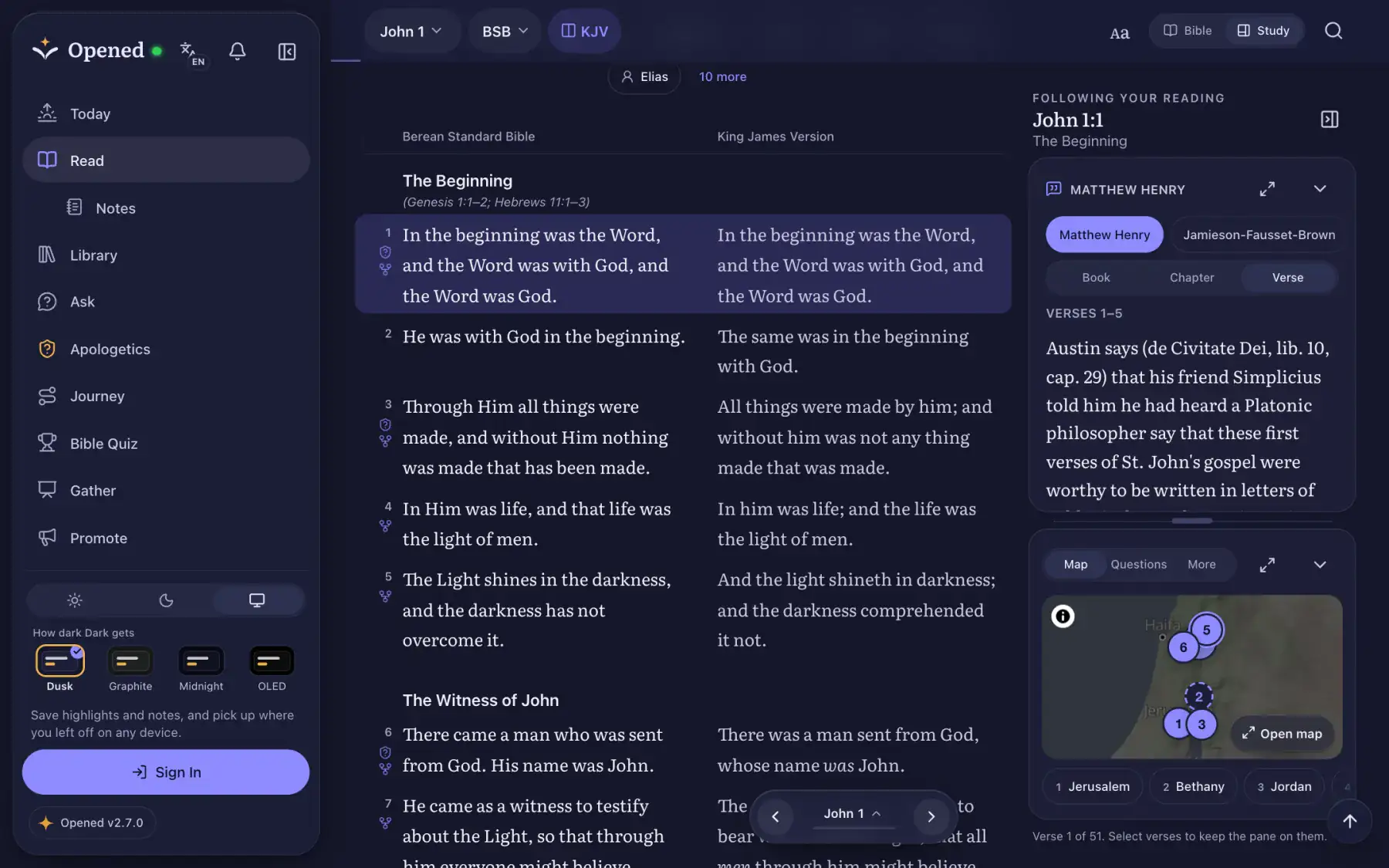
The same Opened, on Mac and on Windows
Real screens from the app: John 1 in two translations, with a commentary and a map of its places beside it.
Other ways
Helping someone else?
Choose their device to see exactly where to click or tap.
In Safari: File, then Add to Dock. In Chrome or Edge: the install button in the address bar.
Good to know
Is there a file to download?
No installer and nothing to unzip: your browser installs Opened the way it installs any web app, in seconds. It’s still a full app, with its own window and icon.
How do I remove it?
Like any app: drag it out of the Dock on a Mac, or uninstall it from the Start menu on Windows. Your account and notes stay safe.
Do I need an account?
No. Reading, search and the Bibles you save work without one. An account keeps your notes and progress on all your devices.
Open the Bible on your computer
Free for everyone, everywhere, with no ads.